
Imagine visiting a website, finding exactly the information you need, and clicking a promising link — only to land on a big, disappointing 404 Page Not Found message.
Annoying, isn’t it?
Now imagine the same thing happening to visitors on your website.
Broken links can interrupt the user experience, make useful resources harder to discover, and create unnecessary obstacles for search engines.
And here’s the tricky part: your website might contain broken links you don’t even know about.
Perhaps you deleted an old article, changed a page URL, removed a tool, or linked to an external website that no longer exists.
Fortunately, you don’t have to inspect every link manually.
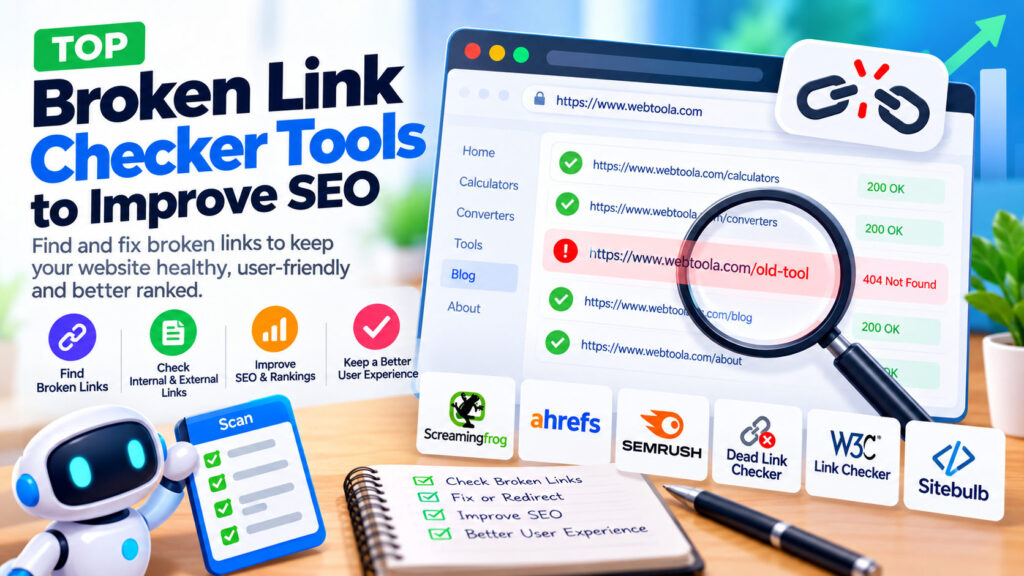
Several free and paid tools can scan websites, identify problematic links, and help you decide what needs fixing.
In this guide, we’ll explore some of the best broken-link checker tools, compare their features, and explain how to use them to keep your website healthy and easy to navigate.
What Are Broken Links?
A broken link is a hyperlink that no longer leads to its intended destination.
For example, suppose your website links to:
https://example.com/old-calculator
But that page has been deleted without a suitable replacement.
Visitors clicking the link might encounter an HTTP 404 error.
Broken links can occur in several ways:
- 404 Not Found: The requested resource cannot be found.
- 410 Gone: The resource has intentionally been removed.
- 500 Internal Server Error: The destination server encounters an error.
- DNS errors: The destination domain cannot be resolved.
- Connection timeouts: The destination fails to respond within the allowed time.
- Incorrect URLs: A typo or malformed address leads to the wrong destination.
Not every failed request means a link is permanently broken. Temporary outages, bot protection, and network issues can also cause errors.
That’s why verifying suspicious links is important before making changes.
Do Broken Links Affect SEO?
Broken links can create SEO problems, but the relationship isn’t as simple as saying every 404 error causes a ranking penalty.
Google has explained that 404 responses are a normal part of the web. A page returning 404 doesn’t automatically damage the rankings of an entire website.
However, broken links can still create real problems.
1. Poor user experience
Visitors who repeatedly encounter broken links may struggle to find the information they need.
2. Lost internal navigation opportunities
Internal links help people and search engines discover related pages.
If important internal links point to nonexistent resources, those connections become less useful.
3. Wasted crawling effort
Search engines may repeatedly encounter outdated URLs through links and other discovery mechanisms.
Fixing important broken internal links helps maintain a cleaner website structure.
4. Lost backlink value
If other websites link to one of your deleted pages, visitors and search engines may encounter an error instead of useful content.
When a genuinely relevant replacement exists, an appropriate redirect can help preserve access to the resource.
The goal isn’t to eliminate every 404 response. It’s to ensure important links lead somewhere useful.
1. Screaming Frog SEO Spider — Best for Detailed Website Audits
Website: https://www.screamingfrog.co.uk/seo-spider/
Screaming Frog SEO Spider is a desktop website crawler used by SEO professionals to inspect website structure and technical issues.
It can discover internal and external links, identify HTTP response codes, and help locate pages linking to broken destinations.
Key features
- Internal and external link crawling
- HTTP status code reporting
- Identification of 404 errors
- Inlink analysis to locate broken-link sources
- Redirect inspection
- Exportable crawl reports
Free vs. paid
The free version supports crawling up to 500 URLs per crawl, with additional restrictions. The paid license removes that crawl limit and unlocks advanced capabilities.
Best for
Website owners, WordPress developers, and SEO professionals who want detailed control over technical audits.
Verdict: One of the strongest options for investigating broken internal links and understanding exactly where they appear.
2. Ahrefs Site Audit — Best for Comprehensive SEO Monitoring
Website: https://ahrefs.com/site-audit
Ahrefs Site Audit examines websites for technical SEO issues, including problematic internal and external links.
Its reports can help you investigate broken pages, link issues, redirects, and other website health problems.
Key features
- Automated website crawling
- Broken-link identification
- Technical SEO reports
- Internal linking analysis
- Scheduled audits
- Historical issue tracking
Free vs. paid
Ahrefs offers Webmaster Tools with limited free access to selected capabilities for verified websites. More extensive features and allowances are available through paid subscriptions.
Best for
Website owners who want ongoing technical SEO monitoring alongside broader SEO research.
Verdict: Useful when broken-link monitoring is part of a larger technical SEO workflow.
3. Semrush Site Audit — Best for SEO Issue Prioritization
Website: https://www.semrush.com/siteaudit/
Semrush Site Audit can identify broken internal links and other technical website problems.
It organizes findings into reports that help website owners understand which issues deserve attention.
Key features
- Internal link analysis
- HTTP status code checks
- Broken-link reports
- Redirect-related diagnostics
- Scheduled crawling
- Technical SEO issue tracking
Free vs. paid
Semrush provides limited free functionality, while larger crawls and advanced reporting generally require a paid plan.
Best for
Digital marketers, SEO agencies, and businesses managing multiple website optimization activities.
Verdict: A comprehensive option for teams that want broken-link checking alongside other SEO audits.
4. Broken Link Checker by WPMU DEV — Best for WordPress Users
Website: https://wordpress.org/plugins/broken-link-checker/
Broken Link Checker is a WordPress plugin associated with WPMU DEV that helps identify problematic links on WordPress websites.
It’s particularly convenient for website owners who prefer managing link maintenance through WordPress rather than a separate desktop crawler.
Key features
Depending on the plugin version and available scanning mode, capabilities can include:
- Checking links in website content
- Identifying potentially broken destinations
- Viewing link-related reports
- Managing detected link problems
- Using WordPress-oriented workflows
Things to consider
Link-checking plugins and their scanning methods can consume resources or depend on external services.
Review the plugin’s current documentation, hosting compatibility, and available scanning options before installing it.
Best for
WordPress website owners looking for a convenient link-checking workflow.
Verdict: Worth evaluating if you want a WordPress-specific solution without relying entirely on external SEO platforms.
5. W3C Link Checker — Best for Standards-Oriented Link Checking
Website: https://validator.w3.org/checklink
The W3C Link Checker is a free tool for checking links and anchors in web documents.
It can help identify invalid or problematic references without requiring a comprehensive commercial SEO subscription.
Key features
- Checking hyperlinks
- Identifying problematic destinations
- Validating certain document references
- Standards-oriented link inspection
- Free public access
Best for
Developers, technically inclined website owners, and people who need straightforward link validation.
Things to consider
It isn’t a complete SEO auditing platform, and public service limits or availability may affect large checks.
Verdict: A useful free resource for focused link validation.
6. Dead Link Checker — Best for Simple Online Scans
Website: https://www.deadlinkchecker.com/
Dead Link Checker is an online service designed to identify links that lead to unavailable resources.
Its appeal is simplicity: you can begin investigating links without installing a desktop application.
Key features
- Website link checking
- Identification of problematic URLs
- Reports showing detected issues
- Options for checking websites or individual pages
Available features, scan limits, and automated monitoring options depend on the service’s current plans.
Best for
Bloggers and smaller website owners who want a relatively straightforward way to check links.
Verdict: A convenient option when you need a basic online link-checking service.
7. Sitebulb — Best for Visual Technical SEO Audits
Website: https://sitebulb.com/
Sitebulb is a website auditing platform that emphasizes technical analysis and visual reporting.
It can help users understand crawling problems, internal linking structures, and HTTP response issues.
Key features
- Website crawling
- Broken-link analysis
- HTTP response code reporting
- Internal link visualizations
- Technical SEO recommendations
- Detailed audit reports
Free vs. paid
Sitebulb is primarily a paid product, with trial availability and product options subject to change.
Best for
SEO consultants, agencies, and website owners who prefer detailed technical reporting with visual explanations.
Verdict: A strong option for deeper audits, particularly when internal linking and website architecture are important.
Quick Comparison: Best Broken Link Checker Tools
| Tool | Best For | Access Model |
|---|---|---|
| Screaming Frog | Detailed desktop crawling | Free up to 500 URLs; paid |
| Ahrefs Site Audit | Ongoing technical SEO | Limited free access; paid |
| Semrush Site Audit | SEO issue prioritization | Limited free access; paid |
| WPMU DEV Broken Link Checker | WordPress maintenance | Free plugin; features vary |
| W3C Link Checker | Focused link validation | Free |
| Dead Link Checker | Simple online checking | Free/paid options |
| Sitebulb | Visual technical audits | Primarily paid |
Features, pricing, and usage limits can change. Check the official websites before choosing a service.
How to Find and Fix Broken Links: Step by Step
Finding broken links is only half the process.
The real value comes from fixing them correctly.
Step 1: Scan your website
Choose a suitable tool and run a scan of your website.
For smaller sites, Screaming Frog’s free version or a basic online checker may be sufficient.
Step 2: Export or review the results
Identify:
- The page containing the link
- The destination URL
- The reported HTTP status
- Whether the link is internal or external
Step 3: Verify the problem
Open the destination manually.
Check whether the error is reproducible and whether the URL contains a typo.
For external websites, remember that some automated requests are blocked even when the page works normally in a browser.
Step 4: Choose the appropriate fix
Different situations require different solutions.
| Problem | Recommended Action |
|---|---|
| Incorrect URL | Correct the link |
| Page moved permanently | Update internal links and consider a 301 or 308 redirect |
| Deleted page with a relevant replacement | Redirect to the closest useful replacement |
| Deleted page without a replacement | Remove outdated links; retain an appropriate 404 or 410 |
| Broken external resource | Find a reliable replacement or remove the link |
| Temporary server problem | Investigate the server issue before changing links |
Avoid redirecting every deleted URL to your homepage.
A redirect should lead to a genuinely relevant destination.
Step 5: Scan again
After applying fixes, rerun the checker.
Confirm that important links now work and that you haven’t introduced redirect loops or new errors.
How to Fix Broken Links in WordPress
WordPress websites commonly develop broken links when posts are deleted, permalink structures change, or plugins and tools are replaced.
Here’s a practical maintenance process.
Check internal links
Review links in posts, pages, navigation menus, category descriptions, and related-content sections.
If you change a page URL, update the links pointing to it whenever practical.
Use redirects when appropriate
A redirect plugin such as Redirection can help manage URL changes.
For example, if an old calculator page has moved to a new address, a permanent redirect can guide visitors to the correct page.
But remember: redirects aren’t a substitute for updating your own internal links.
Review external resources
Blog articles often link to third-party documentation, software, and tutorials.
These resources may move or disappear over time.
Periodically check important external references and replace outdated destinations.
Check tool pages carefully
For a utilities website, broken links can be especially frustrating.
Visitors might move between a percentage calculator, percentage change calculator, and discount calculator.
If related-tool links stop working, visitors lose an easy path to the next useful resource.
Keeping these connections functional supports a smoother experience.
How Often Should You Check for Broken Links?
The ideal frequency depends on your website’s size and how often its content changes.
Here’s a practical starting point:
| Website Type | Suggested Frequency |
|---|---|
| Small personal blog | Every 1–3 months |
| Frequently updated blog | Monthly |
| Growing tools website | Monthly |
| Large content website | Weekly or automated monitoring |
| Website undergoing redesign | Before and after launch |
These are maintenance suggestions, not Google requirements.
If you frequently change URLs, migrate content, or add new tools, scan more often.
Broken Links vs. Broken Backlinks: What’s the Difference?
These terms sound similar but describe different situations.
Broken internal links are links on your own website pointing to unavailable pages.
Broken external links are links on your website pointing to unavailable resources elsewhere.
Broken backlinks are links from other websites pointing to pages on your website that no longer exist.
For example, imagine an educational website links to your old percentage calculator URL.
If you later change that URL without a redirect, the backlink may lead visitors to a 404 page.
You can investigate such issues using backlink research tools and decide whether an appropriate redirect or restored page would help.
Don’t create irrelevant redirects solely to preserve a backlink.
Common Broken-Link SEO Mistakes to Avoid
Assuming every 404 is harmful
A 404 response is appropriate when a page genuinely no longer exists and has no suitable replacement.
Redirecting everything to the homepage
Irrelevant redirects can confuse visitors and may be treated by Google as soft 404s.
Ignoring broken external links
Your content may depend on external resources that eventually disappear.
Review important references periodically.
Trusting automated reports without verification
Some websites block crawlers or experience temporary outages.
Confirm suspicious results before making changes.
Forgetting internal links after changing URLs
A redirect may keep an old URL accessible, but updating internal links to the final destination is usually preferable.
Installing unnecessary WordPress plugins
A link checker may be useful, but installing multiple overlapping monitoring plugins can introduce avoidable complexity.
Choose a workflow appropriate for your website.
Final Thoughts: Healthy Links Make a Healthier Website
Broken links may seem like small technical details, but they can create frustrating experiences for visitors and interfere with useful website navigation.
The good news is that finding them doesn’t require an expensive SEO subscription.
Free tools such as Screaming Frog’s limited crawler and W3C Link Checker can help you get started.
WordPress-specific plugins offer convenient maintenance workflows, while platforms such as Ahrefs, Semrush, and Sitebulb provide broader technical SEO analysis.
The best broken-link checker isn’t necessarily the most expensive one. It’s the tool that helps you identify real problems and fix them efficiently.
Start with your most important pages, verify detected issues, and make appropriate corrections.
Then establish a simple maintenance routine.
If you’re looking for useful online utilities, explore WebToola for free calculators, converters, and practical tools designed to make everyday digital tasks easier.
Frequently Asked Questions
Do broken links hurt Google rankings?
Broken links can affect usability and make content harder to discover, but a few 404 errors don’t automatically cause a website-wide ranking penalty. Focus on fixing links that interfere with important pages and navigation.
What is the best free broken-link checker?
Screaming Frog SEO Spider is a strong option for smaller website crawls, while W3C Link Checker is useful for focused link validation. WordPress users can also evaluate dedicated link-checking plugins.
Can Google Search Console find broken links?
Google Search Console can report indexing and crawling issues involving unavailable URLs on your verified website. However, it isn’t a comprehensive checker of every internal and external hyperlink.
Should I redirect every broken URL?
No. Redirect only when a relevant replacement exists. If content has been permanently removed without an appropriate alternative, a 404 or 410 response can be correct.
What’s the difference between a 404 and a 410 error?
A 404 means the requested resource wasn’t found. A 410 explicitly indicates that the resource is gone and the condition is expected to be permanent.
How often should I scan my WordPress website?
Monthly scans are a practical starting point for many growing websites. Larger or frequently updated sites may benefit from more frequent checks.
Are broken-link checker plugins safe for WordPress?
Reputable, maintained plugins can be useful, but scanning may consume resources or depend on external services. Review compatibility, permissions, update history, and hosting requirements before installing one.