
Have you ever opened a website, waited for what felt like forever, clicked a button that didn’t respond, or tried to read something only for the entire page to suddenly jump?
Frustrating, isn’t it?
Now imagine visitors experiencing the same problems on your website.
They might leave before reading your content, using your tools, or exploring your products.
That’s why Core Web Vitals matter.
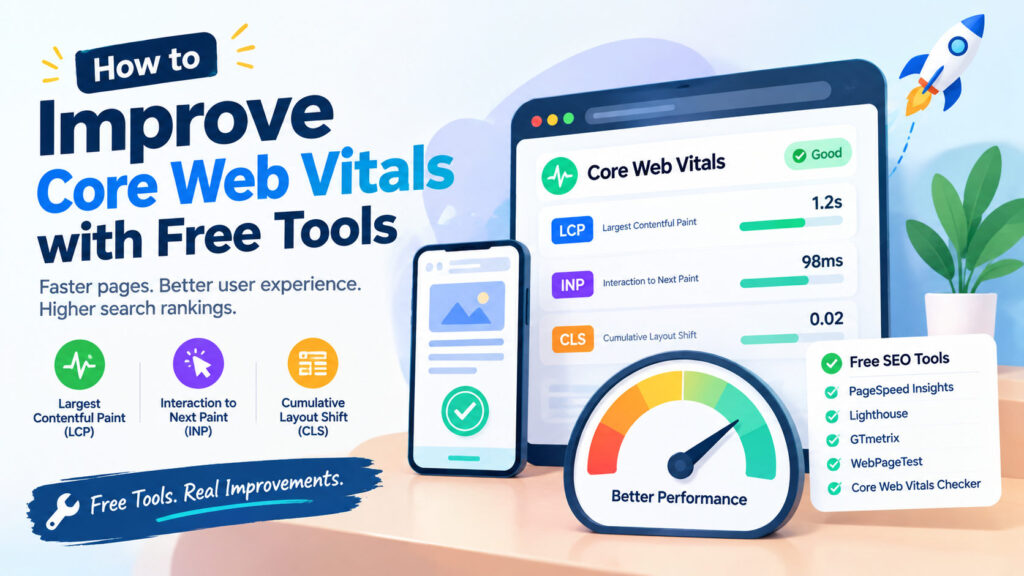
These Google-defined performance metrics help website owners understand how quickly pages load, how responsive they feel, and how stable their layouts are.
And here’s the good news: you don’t need expensive software to identify and fix many common Core Web Vitals problems.
In this guide, we’ll explore the best free tools for measuring website performance, explain what the scores actually mean, and walk through practical improvements you can make — even if you’re running a WordPress website.
What Are Core Web Vitals?
Core Web Vitals are a set of metrics that measure important aspects of the real-world experience visitors have when using a website.
Google currently focuses on three Core Web Vitals:
- Largest Contentful Paint (LCP): Loading performance.
- Interaction to Next Paint (INP): Responsiveness to user interactions.
- Cumulative Layout Shift (CLS): Visual stability.
Each metric addresses a different type of frustration.
Core Web Vitals: What Counts as a Good Score?
| Metric | Good | Needs Improvement | Poor |
|---|---|---|---|
| Largest Contentful Paint (LCP) | 2.5 seconds or less | Over 2.5 to 4 seconds | Over 4 seconds |
| Interaction to Next Paint (INP) | 200 ms or less | Over 200 to 500 ms | Over 500 ms |
| Cumulative Layout Shift (CLS) | 0.1 or less | Over 0.1 to 0.25 | Over 0.25 |
These thresholds are generally evaluated at the 75th percentile of page visits, separately for mobile and desktop.
In simple terms, Google wants most visitors to experience pages that load quickly, respond promptly, and don’t unexpectedly move around.
Why Do Core Web Vitals Matter for SEO?
Google uses Core Web Vitals as part of its ranking systems, but they aren’t a magic shortcut to higher rankings.
A fast website with poor content won’t automatically outrank a slower website that provides much better information.
However, improving Core Web Vitals can benefit your visitors by making your website:
- Faster to load
- More responsive
- Easier to navigate
- Less frustrating on mobile devices
- More comfortable to use
For websites offering interactive calculators, converters, or other online utilities, these improvements can be particularly valuable.
After all, visitors generally expect a simple online tool to work quickly.
1. Google PageSpeed Insights: Your First Stop
Free tool: https://pagespeed.web.dev/
Google PageSpeed Insights is one of the easiest ways to evaluate a website’s performance.
Simply enter a page URL and run the analysis.
The tool provides mobile and desktop results, along with performance diagnostics and improvement suggestions.
What should you look for?
Start with the Core Web Vitals assessment, if available.
PageSpeed Insights may display real-user data from the Chrome User Experience Report (CrUX), including LCP, INP, and CLS.
It also provides laboratory testing powered by Lighthouse.
These two types of information serve different purposes.
Field data reflects experiences collected from actual eligible Chrome users over a rolling period.
Lab data measures performance in a controlled testing environment.
A page can perform well in a lab test while some real visitors still experience problems.
How to use PageSpeed Insights
- Open PageSpeed Insights.
- Enter your homepage or an important tool-page URL.
- Run the analysis.
- Review mobile results first.
- Examine the Core Web Vitals assessment.
- Look for diagnostics related to slow loading, unnecessary JavaScript, and layout shifts.
Pro tip: Don’t focus exclusively on achieving a perfect 100 performance score. Prioritize actual visitor experience and the issues affecting your most important pages.
2. Google Lighthouse: Find Technical Performance Problems
Free tool: Built into Chrome DevTools.
Lighthouse is an automated auditing tool that evaluates several aspects of website quality, including performance, accessibility, and SEO basics.
You can run it directly in Google Chrome.
How to run Lighthouse
- Open your website in Chrome.
- Press F12 to open Developer Tools.
- Select the Lighthouse tab.
- Choose the device and audit categories.
- Run the analysis.
Lighthouse can help identify:
- Render-blocking resources
- Large images
- Unused JavaScript
- Unnecessary CSS
- Long main-thread tasks
- Layout instability
- Slow resource loading
It also provides a simulated performance score.
Remember that Lighthouse is primarily a lab-testing tool. Its results can vary between runs and don’t replace real-user performance data.
3. Google Search Console: Monitor Core Web Vitals Across Your Website
Free tool: https://search.google.com/search-console/
If you’ve verified your website in Google Search Console, you can use its Core Web Vitals report to identify broader performance problems.
Unlike testing one page at a time, Search Console groups URLs with similar performance characteristics.
How to find the report
- Open Google Search Console.
- Select your website property.
- Navigate to Core Web Vitals under Experience, where available.
- Review mobile and desktop reports.
- Open an issue to inspect affected URL groups.
You may see pages categorized as Good, Needs improvement, or Poor.
What makes this useful?
Suppose your website has 30 different calculators, all using the same WordPress template.
If several pages share an LCP problem, the cause might be something common to the template rather than an individual calculator.
Fixing that shared issue could improve multiple pages at once.
After deploying a fix, you can use Search Console’s validation workflow to request verification.
Keep in mind that real-user performance data takes time to accumulate, so improvements may not appear immediately.
4. WebPageTest: Investigate What’s Slowing Down Your Website
Tool: https://www.webpagetest.org/
WebPageTest provides detailed website performance testing.
Its waterfall charts are particularly useful for understanding how page resources load.
Depending on the available free testing options, you can investigate:
- Network requests
- Server response times
- Resource loading order
- Large files
- Rendering behavior
- Loading bottlenecks
What is a waterfall chart?
A waterfall chart displays the sequence and duration of network requests made while loading a page.
For example, you might discover that your website loads several large JavaScript files before displaying the main content.
That could point toward an opportunity to delay nonessential scripts.
WebPageTest is more technical than PageSpeed Insights, but it’s valuable when basic diagnostics don’t explain the problem.
5. Chrome DevTools: Understand Slow Interactions
Chrome DevTools is particularly useful when investigating responsiveness problems.
Remember that INP measures how quickly a page responds visually to user interactions.
For an online calculator, this could involve clicking a Calculate button, changing an input, or opening an interactive control.
How to investigate
- Open the page in Chrome.
- Press F12.
- Open the Performance panel.
- Start recording.
- Interact with the page.
- Stop recording and examine the timeline.
Look for expensive JavaScript execution, long tasks, and rendering work associated with the interaction.
A calculator might load quickly but still feel slow if clicking its main button triggers unnecessarily heavy processing.
Improving the loading score alone won’t necessarily solve that problem.
6. Improve Largest Contentful Paint (LCP)
LCP measures how long it takes for the largest qualifying visible content element to render.
This might be a hero image, large heading, or prominent content block.
A good target is 2.5 seconds or less.
Fix 1: Optimize your images
Large images are a common source of unnecessary loading time.
Before uploading images to WordPress:
- Resize them to appropriate dimensions.
- Use modern formats such as WebP or AVIF where supported.
- Compress images without noticeably harming visual quality.
- Avoid uploading extremely large images for small display areas.
- Use responsive image sizes.
For example, a featured image displayed at 800 pixels wide usually doesn’t need to be delivered as a 4000-pixel-wide image.
Fix 2: Don’t lazy-load your main hero image unnecessarily
Lazy loading is useful for images further down the page.
However, lazy-loading an image that’s immediately visible and becomes the LCP element can delay rendering.
For an important above-the-fold image, consider normal loading and appropriate fetch priority.
Don’t apply high priority to every image. Reserve it for resources that genuinely need early loading.
Fix 3: Improve server response time
A slow server can delay the entire loading process.
Potential improvements include:
- Using reliable hosting
- Enabling suitable page caching
- Reducing expensive server-side processing
- Optimizing database queries
- Using a CDN when beneficial
For WordPress, caching can be especially useful for pages that don’t require personalized content.
Fix 4: Reduce render-blocking resources
Some CSS and JavaScript files delay the browser from displaying useful content.
Use Lighthouse diagnostics to identify relevant resources.
Possible improvements include removing unused code, loading noncritical scripts later, and optimizing how essential styles are delivered.
Be careful when applying automatic JavaScript deferral or delay features. They can break menus, forms, and interactive tools if configured incorrectly.
7. Improve Interaction to Next Paint (INP)
INP measures responsiveness during user interactions.
A good target is 200 milliseconds or less.
Unlike loading-focused metrics, INP can reveal problems that occur after the page appears ready.
Fix 1: Reduce unnecessary JavaScript
JavaScript is useful, but excessive work on the browser’s main thread can delay interactions.
Consider:
- Removing unused scripts
- Avoiding unnecessary libraries
- Splitting expensive tasks
- Reducing third-party scripts
- Loading nonessential functionality only when needed
Fix 2: Keep interactive calculations efficient
If your website offers online calculators, avoid performing expensive operations repeatedly while users type.
For example, a calculator may not need to recalculate a large dataset after every keystroke.
Depending on the tool, you could calculate on button click, debounce input processing, or optimize the underlying algorithm.
Fix 3: Watch third-party scripts
Advertising, analytics, chat widgets, and other third-party services can add JavaScript work.
Evaluate whether each script is necessary.
If you plan to monetize your website with advertising, monitor performance after ad scripts are introduced.
Ads can affect both responsiveness and layout stability.
Fix 4: Test real interactions
Don’t assume your page is responsive because its initial loading score looks good.
Test buttons, forms, menus, and interactive controls on realistic mobile devices.
8. Improve Cumulative Layout Shift (CLS)
CLS measures unexpected visual movement while a page is being used.
A good target is 0.1 or less.
Have you ever tried to click a button, only for an advertisement or image to appear and push the button downward?
That’s the kind of experience CLS helps identify.
Fix 1: Reserve space for images
Include appropriate image dimensions or CSS aspect ratios so the browser can reserve space before images load.
For example:
<img
  src="example-image.webp"
  width="800"
  height="450"
  alt="Example illustration"
>
The dimensions help the browser calculate the image’s aspect ratio.
Fix 2: Reserve space for advertisements
If your website displays ads, allocate appropriate space for ad placements.
Avoid inserting advertisements above existing content in ways that unexpectedly push the page downward.
Responsive ad slots can require special attention because ad sizes may vary.
Fix 3: Handle fonts carefully
Web fonts can sometimes cause text to change dimensions after loading.
Use appropriate font-loading strategies and consider metric-compatible fallback fonts to reduce visible movement.
Fix 4: Avoid unexpected content insertion
Don’t insert banners, alerts, or other elements above content without accounting for their impact on layout.
For example, a cookie banner that overlays the page may avoid shifting existing content, although it still needs to be accessible and usable.
9. Improve Core Web Vitals on WordPress
WordPress websites can experience performance problems from themes, plugins, images, hosting, and third-party scripts.
Fortunately, many common issues can be addressed without purchasing premium optimization services.
Free WordPress tools worth evaluating
LiteSpeed Cache
A WordPress optimization plugin offering caching and performance features. Some caching capabilities depend on server compatibility, and certain services have separate conditions or quotas.
WP Super Cache
A free page-caching plugin that can reduce the need to generate pages dynamically for eligible visitors.
Autoptimize
Helps optimize the delivery of CSS, JavaScript, and other front-end assets.
EWWW Image Optimizer
Offers image optimization capabilities, with additional paid services available.
Query Monitor
A developer-oriented debugging plugin useful for investigating database queries, hooks, and other WordPress performance details.
Important: Don’t install every optimization plugin
Multiple plugins attempting to perform the same caching, minification, or script optimization tasks can conflict.
Start with one suitable caching approach, test your website, and introduce additional optimizations only when they address a specific problem.
Always back up your website before making significant changes.
10. A Practical Core Web Vitals Improvement Checklist
Here’s a simple workflow you can follow.
| Step | Action | Free Tool |
|---|---|---|
| 1 | Measure mobile and desktop performance | PageSpeed Insights |
| 2 | Identify affected URL groups | Google Search Console |
| 3 | Find loading bottlenecks | Lighthouse |
| 4 | Investigate slow resource requests | WebPageTest |
| 5 | Analyze slow interactions | Chrome DevTools |
| 6 | Optimize images and loading priorities | Image tools + WordPress |
| 7 | Improve caching and resource delivery | Suitable WordPress caching plugin |
| 8 | Reserve space for images and ads | Browser DevTools |
| 9 | Retest important pages | PageSpeed Insights |
| 10 | Monitor real-user improvements | Search Console |
Don’t attempt every optimization at once.
Fix one significant issue, test the result, and confirm that your website still functions correctly.
This makes it easier to identify which changes actually helped.
11. Common Core Web Vitals Mistakes to Avoid
Chasing a perfect Lighthouse score
A 100/100 performance score isn’t required for good Core Web Vitals.
Focus on meaningful improvements to real visitor experience.
Testing only the homepage
Your homepage may perform differently from blog posts, category pages, and interactive tools.
Test representative pages from each important template.
Ignoring mobile performance
Mobile visitors often experience slower networks and less powerful devices.
Evaluate mobile results independently.
Installing too many optimization plugins
More plugins don’t automatically mean better performance.
Overlapping optimization features can create conflicts and introduce new problems.
Treating lab results as real-user results
Lighthouse and other controlled tests help diagnose issues, but they don’t directly measure every visitor’s experience.
Use field data where available.
Expecting instant Search Console improvements
CrUX field data is generally aggregated over a rolling 28-day period.
Even after a successful fix, reported improvements may take time to become visible.
Final Thoughts: A Faster Website Starts with Better Measurement
Improving Core Web Vitals doesn’t require a large budget or an expensive SEO platform.
Free tools such as PageSpeed Insights, Lighthouse, Search Console, Chrome DevTools, and WebPageTest can help you understand where your website is struggling.
Start by identifying your weakest metric.
If LCP is poor, investigate loading performance.
If INP is poor, focus on interaction responsiveness.
If CLS is poor, look for unexpected layout movement.
Then make targeted improvements and measure again.
The goal isn’t to impress a performance-testing tool. It’s to create a website that feels fast, responsive, and reliable to the people using it.
And if you’re looking for useful online calculators, converters, and digital utilities, explore WebToola — where practical tools are designed to make everyday tasks easier.
Frequently Asked Questions
What are the three Core Web Vitals?
The current Core Web Vitals are Largest Contentful Paint (LCP), Interaction to Next Paint (INP), and Cumulative Layout Shift (CLS). They measure loading performance, responsiveness, and visual stability.
Is Google PageSpeed Insights free?
Yes. Google PageSpeed Insights is free and provides both lab diagnostics and available real-user performance data.
Do Core Web Vitals affect Google rankings?
Core Web Vitals are used by Google’s ranking systems, but good scores don’t guarantee higher rankings. Relevance, helpful content, and other signals remain important.
Can WordPress websites achieve good Core Web Vitals?
Yes. WordPress websites can achieve good performance with suitable hosting, efficient themes, optimized images, appropriate caching, and careful management of plugins and third-party scripts.
What’s the difference between INP and FID?
First Input Delay (FID) measured the delay before processing the first interaction. Interaction to Next Paint (INP) evaluates responsiveness more broadly across interactions during a visit. INP replaced FID as a Core Web Vital in March 2024.
How long does it take for Core Web Vitals improvements to appear?
Lab test improvements can often be measured immediately after deployment. Real-user reports may take longer because they aggregate performance over time, commonly using a rolling 28-day window.
Can I improve Core Web Vitals without installing plugins?
Yes. Image optimization, efficient code, suitable hosting, proper resource loading, and layout improvements can all help without adding WordPress plugins.