
Your website looks great. Your content is useful. You’ve carefully selected your keywords, optimized your titles, and added internal links.
But there’s a problem.
Google isn’t indexing some of your pages. Your website loads slowly on mobile devices, a few important links lead nowhere, and search engines might be struggling to understand your website’s structure.
The frustrating part? You might not even know these problems exist.
That’s where technical SEO tools come in.
Think of them as a health checkup for your website. Just as a doctor examines different aspects of your health, technical SEO tools inspect the underlying systems that help search engines discover, understand, and access your content.
And here’s the good news: you don’t need an expensive SEO subscription to find and fix many common website problems.
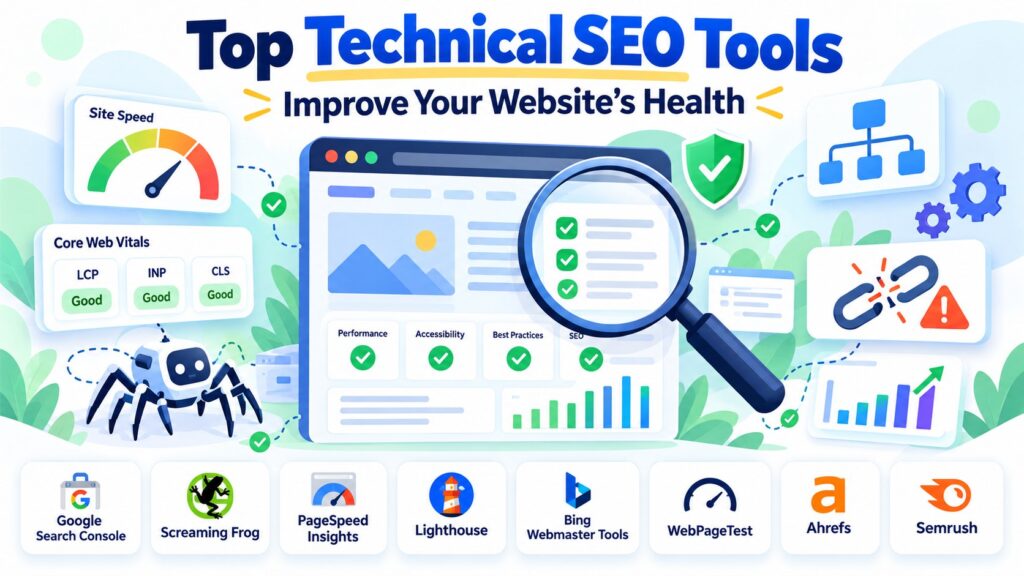
In this guide, we’ll explore nine useful technical SEO tools, compare their features, and show you how to use them to keep your website healthy, accessible, and search-engine friendly.
What Is Technical SEO?
Technical SEO is the process of improving the technical aspects of a website so that search engines can crawl, render, understand, and index its content effectively.
Unlike content SEO, which focuses on topics, keywords, and useful information, technical SEO examines how your website works behind the scenes.
Important areas include:
- Crawling and indexing
- Website speed and Core Web Vitals
- Mobile accessibility
- XML sitemaps
- Robots.txt configuration
- Broken links and redirects
- Canonical URLs
- Structured data
- Internal linking
- HTTPS and website accessibility
Why Does Website Health Matter for SEO?
Imagine creating the world’s most helpful online calculator, but accidentally adding a noindex directive to its page.
Visitors who already know the URL might still use the calculator, but search engines that honor the directive won’t index it.
Or perhaps your website contains hundreds of pages, but important ones are difficult to discover through internal links.
Even excellent content can struggle when technical problems prevent search engines or visitors from accessing it properly.
Technical SEO doesn’t guarantee higher rankings. It helps remove obstacles that could prevent your website from reaching its potential.
1. Google Search Console — Best Free Tool for Search Visibility and Indexing
Website: https://search.google.com/search-console/
Google Search Console is an essential tool for website owners.
It helps you understand how Google discovers, indexes, and displays your website in search results.
Unlike many third-party platforms, Search Console provides information directly from Google’s systems about your verified website.
What can you check?
- Page indexing status
- Crawling and indexing problems
- Search impressions and clicks
- Queries bringing visitors to your website
- XML sitemap processing
- Core Web Vitals
- Manual actions and security issues
- URL inspection results
How to use it
- Sign in to Google Search Console.
- Select your verified website property.
- Open the Page indexing report.
- Review reasons why pages aren’t indexed.
- Inspect important URLs individually.
- Check whether your sitemap has been processed successfully.
A useful example
Suppose you publish a new percentage calculator.
After some time, you notice that it isn’t appearing in Google’s search results.
Use URL Inspection to investigate whether Google has discovered the page, whether indexing is permitted, and whether Google selected the expected canonical URL.
Remember that not every non-indexed URL represents an error. Duplicate pages, redirects, and intentionally excluded pages may be working exactly as intended.
Best for: Every website owner, regardless of experience or budget.
Verdict: Start here before paying for any technical SEO auditing platform.
2. Screaming Frog SEO Spider — Best for Detailed Website Crawling
Website: https://www.screamingfrog.co.uk/seo-spider/
Screaming Frog SEO Spider is a desktop crawler that examines website pages and reports technical issues.
Instead of manually checking pages one by one, you can crawl many URLs and review their technical details in one place.
What can it identify?
- Broken internal and external links
- HTTP 404 and server errors
- Redirects and redirect chains
- Duplicate page titles
- Missing meta descriptions
- Heading structure problems
- Canonical URL issues
- Indexability signals
- Internal linking patterns
Free vs. paid
Screaming Frog offers a free version that can crawl up to 500 URLs per crawl. Advanced capabilities and higher crawl limits require a paid license.
A practical example
Imagine your website contains 40 calculators and 20 blog posts.
You change the URL of one calculator but forget to update links pointing to the old address.
A Screaming Frog crawl can help identify those links and the pages containing them.
Instead of searching every article manually, you can fix the problem systematically.
Best for: WordPress developers, technical SEO practitioners, and website owners managing multiple pages.
Verdict: An excellent option for detailed technical audits, especially for websites small enough to use the free crawling allowance.
3. Google PageSpeed Insights — Best for Website Speed and Core Web Vitals
Website: https://pagespeed.web.dev/
Website speed affects how visitors experience your content.
A page that takes too long to display its main content, responds slowly to taps, or constantly shifts its layout can frustrate users.
Google PageSpeed Insights helps investigate these problems.
What does it measure?
PageSpeed Insights reports performance metrics and diagnostics, including the three Core Web Vitals:
| Metric | What It Measures | Good Threshold |
|---|---|---|
| Largest Contentful Paint (LCP) | Loading performance | 2.5 seconds or less |
| Interaction to Next Paint (INP) | Responsiveness | 200 milliseconds or less |
| Cumulative Layout Shift (CLS) | Visual stability | 0.1 or less |
These thresholds are generally evaluated at the 75th percentile of real-user visits.
How to use it
- Enter your website URL.
- Run the analysis.
- Review mobile and desktop results.
- Examine available real-user performance data.
- Review Lighthouse diagnostics.
- Prioritize problems affecting important page elements.
Common improvements
- Compress oversized images.
- Reduce unnecessary JavaScript.
- Improve server response times.
- Reserve space for images and advertisements.
- Avoid delaying critical resources.
- Use appropriate caching.
Important: A 100/100 Lighthouse performance score isn’t required for good Core Web Vitals, and it doesn’t guarantee higher Google rankings.
Best for: Website owners wanting to diagnose slow loading and poor page experience.
Verdict: One of the most useful free tools for finding performance-related issues.
4. Google Lighthouse — Best for Technical Performance Diagnostics
Website: https://developer.chrome.com/docs/lighthouse/
Google Lighthouse is an automated auditing tool available through Chrome DevTools.
It evaluates several aspects of website quality.
What can Lighthouse test?
- Performance
- Accessibility
- SEO basics
- Website best practices
Lighthouse can uncover issues such as inefficient resource loading, accessibility problems, and technical implementation mistakes.
How to run an audit
- Open your website in Google Chrome.
- Press F12 to open DevTools.
- Select the Lighthouse tab.
- Choose the device and audit categories.
- Run the analysis.
- Examine the findings and recommendations.
Why use Lighthouse if PageSpeed Insights already exists?
PageSpeed Insights uses Lighthouse for its laboratory diagnostics.
However, running Lighthouse through Chrome DevTools gives developers more flexibility during local investigation and testing.
For example, you can examine a page while actively developing a WordPress theme or testing changes to interactive tools.
Best for: Developers and website owners diagnosing specific performance or accessibility problems.
Verdict: A valuable free companion to PageSpeed Insights.
5. Ahrefs Site Audit — Best for Ongoing Website Health Monitoring
Website: https://ahrefs.com/site-audit
Ahrefs Site Audit crawls websites and identifies a wide range of technical and on-page SEO issues.
Its reports organize findings into categories that help website owners understand what needs attention.
What can it check?
- Crawlability and indexability
- Internal linking problems
- Broken links
- Redirect issues
- Duplicate content signals
- Page metadata
- Technical configuration issues
Free vs. paid
Ahrefs offers a free account with Site Audit access for verified websites.
As of October 2026, its published free allowance includes 5,000 crawl credits per verified project per month, subject to the provider’s current terms.
Paid plans provide broader allowances and additional SEO capabilities.
Why it’s useful
Suppose your website contains several categories of online utilities.
You may want to monitor technical issues as you continuously add new pages.
A recurring site audit can make it easier to notice problems introduced during development or content updates.
Best for: Growing websites that benefit from regular technical monitoring.
Verdict: Particularly attractive because useful site-auditing capabilities are available even without a paid subscription.
6. Semrush Site Audit — Best for Comprehensive SEO Issue Management
Website: https://www.semrush.com/siteaudit/
Semrush is a broader digital marketing platform that includes a technical website auditing tool.
Site Audit examines websites and organizes technical findings into reports.
What can it identify?
- Crawlability problems
- HTTPS-related issues
- Broken internal links
- Redirect problems
- Duplicate or missing metadata
- Internal linking issues
- Various technical SEO warnings
What makes it useful?
Semrush can help prioritize issues and monitor changes over repeated audits.
This is valuable when website maintenance involves several activities, such as content updates, design changes, and technical improvements.
Free vs. paid
Semrush provides limited free access to certain features. Larger audits and advanced capabilities generally require a paid subscription.
Always verify current usage limits before choosing a plan.
Best for: SEO consultants, agencies, and businesses managing ongoing optimization activities.
Verdict: A comprehensive solution if you need technical SEO auditing alongside broader marketing tools.
7. Bing Webmaster Tools — Best Free Alternative Search Engine Audit
Website: https://www.bing.com/webmasters/
Google isn’t the only search engine worth paying attention to.
Bing Webmaster Tools provides information about how Bing discovers and processes your website.
Its Site Scan feature can crawl your website and identify common technical SEO issues.
Useful features
- Site scanning
- URL inspection
- Sitemap management
- Search performance reporting
- Crawl and indexing diagnostics
- Technical SEO issue reports
Why use Bing Webmaster Tools?
Different search engines may discover or report issues differently.
Using Bing Webmaster Tools alongside Google Search Console gives you another source of technical information.
For example, you might identify a crawling issue in Bing’s reports that deserves investigation even if Google hasn’t highlighted it.
How to get started
- Sign in to Bing Webmaster Tools.
- Add and verify your website.
- Review sitemap and indexing information.
- Open Site Scan.
- Configure and run a scan.
- Investigate reported issues.
Best for: Website owners looking for additional free search visibility and technical diagnostics.
Verdict: An underrated addition to a free technical SEO toolkit.
8. Google Rich Results Test — Best for Structured Data Validation
Website: https://search.google.com/test/rich-results
Structured data helps search engines understand certain types of information on a page.
For example, supported markup can describe products, organizations, articles, breadcrumbs, and other content types.
Google’s Rich Results Test helps determine whether a page contains structured data eligible for supported rich result features.
What can it check?
- Supported structured data types
- Markup errors
- Missing required properties
- Certain warnings
- Potential rich result eligibility
How to use it
- Open the Rich Results Test.
- Enter a publicly accessible URL.
- Run the test.
- Review detected structured data types.
- Investigate errors and warnings.
- Correct the markup and retest.
Does valid structured data guarantee rich results?
No.
Correct structured data can make a page eligible for supported search features, but Google doesn’t guarantee that rich results will appear.
Also, not every type of valid Schema.org markup corresponds to a Google rich result.
For broader schema validation, you can also use the Schema Markup Validator at https://validator.schema.org/.
Best for: Website owners and developers implementing structured data.
Verdict: A useful free validation tool, especially when working with WordPress SEO plugins.
9. WebPageTest — Best for Advanced Loading Performance Analysis
Website: https://www.webpagetest.org/
WebPageTest provides detailed information about how a website loads.
One of its most useful features is the network waterfall chart.
What is a waterfall chart?
A waterfall chart shows the timing and sequence of network requests made while loading a page.
This helps you understand which resources are delaying other resources.
What can WebPageTest reveal?
- Slow server responses
- Large page resources
- Render-blocking requests
- Inefficient resource-loading order
- Third-party script impact
- Loading performance under selected test conditions
A practical example
Imagine your WordPress homepage loads several JavaScript files from plugins, advertising services, and analytics platforms.
A waterfall analysis may help you identify resources consuming excessive time or delaying the main content.
You can then investigate whether those resources are necessary or can be loaded more efficiently.
Free testing options are available, although allowances and features can vary.
Best for: Developers and website owners investigating complex loading problems.
Verdict: Particularly useful when PageSpeed Insights identifies a problem but you need more detailed network information.
Quick Comparison: Best Technical SEO Tools
| Tool | Best Use | Access |
|---|---|---|
| Google Search Console | Indexing and Google Search diagnostics | Free |
| Screaming Frog | Detailed website crawling | Free limited / Paid |
| PageSpeed Insights | Speed and Core Web Vitals | Free |
| Google Lighthouse | Performance and technical diagnostics | Free |
| Ahrefs Site Audit | Website health monitoring | Free limited / Paid |
| Semrush Site Audit | Comprehensive SEO auditing | Free limited / Paid |
| Bing Webmaster Tools | Bing indexing and site scanning | Free |
| Google Rich Results Test | Structured data validation | Free |
| WebPageTest | Detailed loading analysis | Free options / Paid |
Pricing and usage limits may change. Check the official provider websites before purchasing a subscription.
How to Run a Complete Technical SEO Audit for Free
You don’t need all nine tools to perform a useful website health check.
Here’s a simple process using free resources.
Step 1: Check whether Google can index your pages
Open Google Search Console.
Review the Page indexing report and inspect important URLs.
Look for unexpected noindex directives, crawling problems, incorrect canonicals, or server errors.
Step 2: Check your XML sitemap
Confirm that your sitemap is accessible and submitted to Search Console.
Make sure it contains your preferred indexable URLs rather than redirected, deleted, or intentionally excluded pages.
A sitemap helps search engines discover URLs, but submitting one doesn’t guarantee indexing.
Step 3: Crawl your website
Use Screaming Frog’s free crawler, where its limits are sufficient.
Look for:
- Broken links
- Server errors
- Redirect chains
- Missing titles
- Unexpected canonical URLs
- Important pages that are difficult to reach
Step 4: Test website speed
Run PageSpeed Insights on representative page types.
Don’t test only the homepage.
Include blog posts, category pages, and important interactive tools.
Step 5: Review mobile usability
Use Chrome DevTools and physical smartphones to test responsive layouts.
Pay particular attention to navigation, forms, buttons, and interactive functionality.
Step 6: Validate structured data
Use Google’s Rich Results Test where supported structured data is implemented.
Correct errors that prevent intended rich result eligibility.
Step 7: Review the findings
Prioritize issues according to their impact on visitors, crawling, indexing, and important pages.
Fix the most significant problems first.
Which Technical SEO Problems Should You Fix First?
An SEO audit can produce a surprisingly long list of warnings.
But not every warning represents a serious problem.
Here’s a practical prioritization guide.
| Priority | Example Issue | Recommended Action |
|---|---|---|
| Critical | Important page accidentally marked noindex | Correct the directive |
| Critical | Important content inaccessible to crawlers | Investigate and restore access |
| High | Broken internal navigation | Update affected links |
| High | Incorrect canonical URL on an important page | Review canonical configuration |
| High | Very poor mobile usability | Fix layout or functionality |
| Medium | Slow loading performance | Investigate bottlenecks |
| Medium | Missing useful metadata | Add clear, relevant metadata |
| Medium | Unnecessary redirect chains | Link directly to final destinations |
| Low | Minor warnings without user impact | Review when appropriate |
These priorities are illustrative. The correct order depends on your website and the pages affected.
Remember: A high website health score doesn’t automatically mean your SEO strategy is successful.
A technically healthy website still needs useful content and relevant search demand.
Technical SEO Tips Specifically for WordPress Websites
WordPress makes publishing convenient, but themes, plugins, and configuration changes can introduce technical issues.
Here are some important areas to monitor.
Keep your sitemap accurate
If you’re using Rank Math, review its sitemap settings.
Ensure that the pages and post types you want indexed are included appropriately.
Avoid submitting URLs that are intentionally noindexed or permanently redirected.
Review robots.txt carefully
The robots.txt file controls crawler access, but it isn’t a reliable way to remove pages from search results.
For example, a rule blocking an important page may prevent Google from crawling it to discover a noindex directive.
Use robots.txt for appropriate crawl controls rather than treating it as a universal indexing solution.
Check permalink changes
Changing a WordPress permalink may break internal and external links.
When moving content permanently, use a suitable redirect if a relevant replacement exists.
Also update your own internal links.
Be careful with optimization plugins
Caching and performance plugins can improve loading speed, but overlapping optimization features may create problems.
For example, aggressive JavaScript delays can interfere with calculators and other interactive tools.
Test functionality after making significant changes.
Monitor your category and tool pages
If your website has calculators, converters, and developer utilities, inspect their templates separately.
A technical problem in a shared template might affect many pages simultaneously.
Keep WordPress software updated
Maintain compatible versions of WordPress core, themes, and plugins.
Security and stability problems can affect website availability, which in turn can interfere with crawling and visitor access.
Five Technical SEO Mistakes to Avoid
1. Treating every audit warning as an emergency
Not every warning needs immediate action. Evaluate its actual impact.
2. Assuming all 404 pages are bad
A 404 is appropriate when content no longer exists and no relevant replacement is available.
3. Focusing only on Lighthouse scores
Laboratory scores are useful diagnostic indicators, not predictions of search rankings.
4. Blocking pages in robots.txt to force deindexing
Robots.txt isn’t a dependable deindexing mechanism. Use appropriate indexing controls.
5. Running audits without fixing anything
Collecting reports doesn’t improve your website. The benefits come from understanding and resolving meaningful problems.
How Often Should You Perform a Technical SEO Audit?
The appropriate frequency depends on your website’s size and how often it changes.
| Website Type | Suggested Audit Frequency |
|---|---|
| Small personal blog | Every 2–3 months |
| Growing blog | Monthly |
| Online tools and calculators website | Monthly and after major updates |
| Large commercial website | Weekly or automated monitoring |
| Newly redesigned or migrated website | Before and after launch |
These are practical maintenance suggestions, not search engine requirements.
For a growing utility website, regular checks can help catch problems introduced when new tools, pages, and templates are added.
Final Thoughts: A Healthy Website Starts with Good Technical Foundations
Technical SEO may sound complicated, but you don’t need to be an expert to identify many common problems.
Google Search Console can help you understand indexing. Screaming Frog can reveal broken links and structural issues. PageSpeed Insights and Lighthouse can highlight performance problems. Bing Webmaster Tools provides another useful source of crawling information.
And if you need deeper analysis, Ahrefs, Semrush, and WebPageTest offer additional capabilities.
The important thing isn’t how many SEO tools you use.
It’s whether those tools help you make your website more accessible, reliable, and useful.
Start with a basic audit, focus on meaningful issues, and improve your website gradually.
A technically healthy website won’t guarantee higher rankings, but it creates a stronger foundation for your content and SEO efforts.
Looking for useful online utilities? Explore WebToola for free calculators, converters, developer tools, and practical digital resources.
Frequently Asked Questions
What are technical SEO tools?
Technical SEO tools analyze aspects of a website such as crawling, indexing, page speed, broken links, redirects, structured data, and other technical configurations that influence how search engines access and understand content.
Which technical SEO tool is best for beginners?
Google Search Console is an excellent starting point because it provides information about how Google interacts with your website. PageSpeed Insights is also beginner-friendly for checking loading performance.
Can I perform a technical SEO audit for free?
Yes. Google Search Console, PageSpeed Insights, Lighthouse, Bing Webmaster Tools, and Screaming Frog’s limited free crawler provide useful auditing capabilities without requiring a paid subscription.
Do technical SEO tools improve rankings automatically?
No. These tools identify potential problems and opportunities. You must interpret their findings and make appropriate improvements. Better rankings aren’t guaranteed.
What’s the difference between technical SEO and on-page SEO?
Technical SEO focuses on website infrastructure, crawling, indexing, accessibility, and performance. On-page SEO focuses on individual page content, titles, headings, internal links, and relevance. Some activities overlap.
How often should I check website health?
Monthly audits are a practical starting point for growing websites. You should also review technical performance after major updates, migrations, or significant design changes.
Is Rank Math enough for technical SEO?
Rank Math helps manage important SEO settings, metadata, XML sitemaps, and certain structured data features. However, it doesn’t replace dedicated crawling, performance testing, or search engine diagnostic tools.
What is the most serious technical SEO issue?
There isn’t one universally worst issue. However, preventing search engines from accessing or indexing your important pages can seriously restrict their ability to appear in search results.