
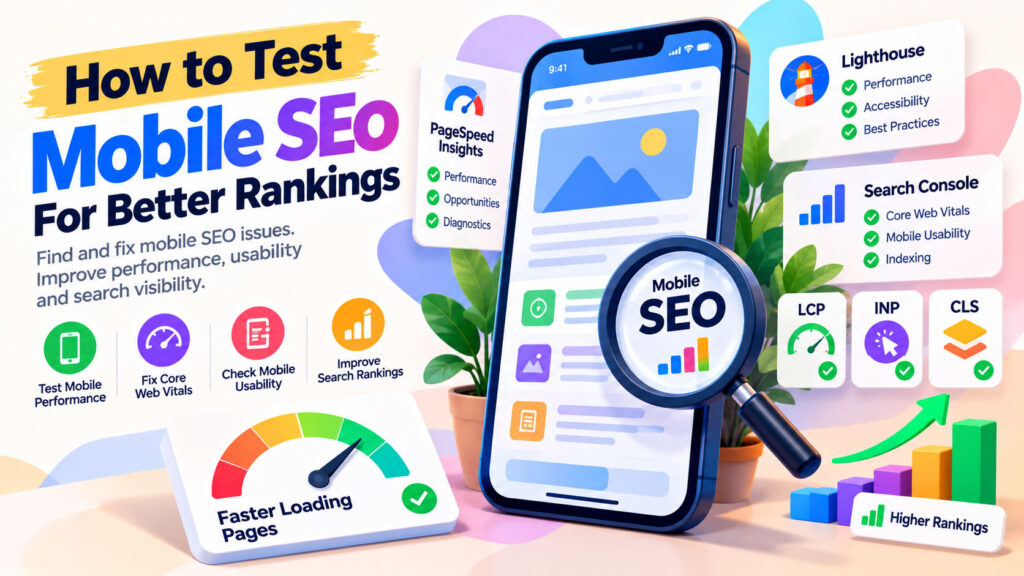
Picture this: someone finds your website on Google, taps the result on their phone, and waits for the page to load.
The text finally appears, but it’s tiny. The menu is difficult to use. An image pushes the content downward, and the button they need is partly hidden off-screen.
What happens next?
There’s a good chance they’ll leave.
Now imagine that website is yours.
You may have excellent content, useful online tools, and a carefully planned SEO strategy. But if your website is frustrating to use on a smartphone, visitors might never discover what makes it valuable.
That’s why mobile SEO testing deserves your attention.
Google uses the mobile version of a website’s content for indexing and ranking. And with so many visitors browsing on smartphones, mobile performance is an important part of providing a good website experience.
The good news? You can identify many common mobile SEO problems using completely free tools.
In this guide, we’ll explore how to test mobile SEO, which metrics matter, how to spot common issues, and what you can do to improve your website.
What Is Mobile SEO?
Mobile SEO is the process of optimizing a website so that people using smartphones and other mobile devices can easily discover, access, and use its content.
It combines several areas of website optimization:
- Responsive design
- Mobile loading performance
- Content accessibility
- Search engine crawling and indexing
- Navigation and usability
- Core Web Vitals
- Mobile-friendly layouts
- Technical SEO
Mobile SEO isn’t about creating an entirely separate SEO strategy for smartphones.
It’s about making sure your website works effectively across different screen sizes and devices.
For example, an online percentage calculator should be just as easy to operate on a smartphone as it is on a desktop computer.
Users should be able to enter values, understand the results, and access related tools without awkward zooming or horizontal scrolling.
1. Understand Google’s Mobile-First Indexing
Before testing your website, it’s important to understand how Google approaches mobile content.
Google uses mobile-first indexing, meaning it primarily uses the content it accesses with its smartphone crawler for indexing and ranking.
This doesn’t mean Google maintains completely separate mobile and desktop indexes.
Instead, its indexing systems rely on the mobile version of the content.
Why does this matter?
Imagine your desktop website contains:
- A complete article
- Detailed FAQs
- Useful internal links
- Descriptive images
- Structured data
But your mobile website displays only a shortened article with several important sections missing.
Google may have less information available to understand and index your content.
What should you check?
Make sure important content is accessible on mobile, including:
- Main article text
- Headings
- Internal links
- Images and alternative text
- Important tool functionality
- Metadata and structured data
You can reorganize content into tabs or expandable sections for smaller screens.
However, don’t remove important information simply because a visitor is using a phone.
Key lesson: Mobile-first indexing makes the completeness and accessibility of your mobile content especially important.
2. Test Mobile Performance with Google PageSpeed Insights
Free tool: https://pagespeed.web.dev/
Google PageSpeed Insights is one of the best starting points for mobile SEO testing.
It analyzes a web page and provides mobile and desktop performance information.
How to test your website
- Open Google PageSpeed Insights.
- Enter the URL you want to test.
- Click Analyze.
- Select the Mobile results.
- Review the performance metrics and diagnostics.
- Investigate the most significant problems.
PageSpeed Insights provides two main types of information.
Field data: Performance information collected from actual eligible Chrome users, when sufficient data is available.
Lab data: Results from a controlled Lighthouse test designed to help diagnose performance issues.
These results may differ because real visitors use different devices, networks, and browsing conditions.
What should you look for?
Start with the Core Web Vitals assessment.
Then examine opportunities involving:
- Slow server responses
- Large images
- Excessive JavaScript
- Render-blocking resources
- Unexpected layout shifts
- Inefficient loading behavior
Pro tip: Don’t obsess over achieving a perfect 100/100 Lighthouse score. Fix issues that meaningfully affect the experience of real visitors.
3. Understand the Three Core Web Vitals
Core Web Vitals measure important aspects of the experience visitors have when using a website.
The current metrics are:
| Metric | What It Measures | Good Result |
|---|---|---|
| Largest Contentful Paint (LCP) | Main content loading | 2.5 seconds or less |
| Interaction to Next Paint (INP) | Interaction responsiveness | 200 milliseconds or less |
| Cumulative Layout Shift (CLS) | Visual stability | 0.1 or less |
The recommended thresholds are evaluated at the 75th percentile of page visits.
Largest Contentful Paint (LCP)
LCP measures how quickly the largest qualifying visible content element appears.
For example, a large banner image might be delaying your article’s main content.
Possible improvements include:
- Compressing images
- Improving server response time
- Removing unnecessary render-blocking resources
- Prioritizing important above-the-fold content
Interaction to Next Paint (INP)
INP evaluates how responsive your website is to user interactions.
Suppose a visitor taps the Calculate button on your online calculator.
If JavaScript blocks the browser from responding promptly, the interaction can feel slow.
Possible improvements include reducing heavy JavaScript tasks, limiting unnecessary scripts, and improving event handlers.
Cumulative Layout Shift (CLS)
CLS measures unexpected movement of page elements.
For example, an advertisement might suddenly appear above the content and push everything downward.
Possible fixes include:
- Reserving space for images
- Allocating appropriate ad slots
- Managing font loading
- Avoiding unexpected content insertion
For a deeper explanation, read our guide on How to Improve Core Web Vitals with Free Tools.
4. Use Chrome DevTools to Test Mobile Layouts
Free tool: Built into Google Chrome.
Chrome DevTools provides a convenient way to simulate different mobile screen sizes.
How to use it
- Open your website in Chrome.
- Press F12 to open Developer Tools.
- Click the Toggle Device Toolbar icon.
- Select a mobile device preset or enter custom screen dimensions.
- Examine how the page behaves.
- Test scrolling, menus, forms, and buttons.
What should you check?
Horizontal scrolling
Does the page extend beyond the screen width?
Unwanted horizontal scrolling often indicates layout or responsive design problems.
Text readability
Can visitors comfortably read paragraphs without zooming?
Buttons and links
Are interactive controls easy to tap without accidentally activating nearby elements?
Navigation
Can visitors open menus and find important pages?
Forms
Are input fields easy to use with a mobile keyboard?
Images and tables
Do they resize appropriately without breaking the layout?
An important limitation
Device emulation isn’t the same as testing on a physical smartphone.
Browser simulations are useful for finding layout problems, but they can’t reproduce every device-specific behavior.
Whenever practical, test important pages on actual mobile devices too.
5. Run a Mobile Lighthouse Audit
Lighthouse is another free tool available through Chrome DevTools.
It performs automated audits covering website performance, accessibility, SEO basics, and other technical areas.
How to run a mobile audit
- Open your website in Chrome.
- Press F12.
- Select the Lighthouse tab.
- Choose the Mobile device option.
- Select the relevant audit categories.
- Run the analysis.
Lighthouse can highlight problems such as:
- Slow loading resources
- Inefficient JavaScript
- Accessibility issues
- Missing basic metadata
- Images without descriptive alternative text
- Technical implementation problems
Is a high Lighthouse SEO score enough?
No.
A Lighthouse SEO score only examines a limited collection of technical checks.
It doesn’t evaluate every aspect of content quality, keyword relevance, backlinks, crawlability, or mobile usability.
Treat the report as one part of a broader SEO audit.
6. Check Mobile Indexing with Google Search Console
Free tool: https://search.google.com/search-console/
Google Search Console helps website owners understand how Google discovers, indexes, and displays their pages in search.
It is particularly valuable when investigating technical SEO problems.
Check an important URL
- Open Google Search Console.
- Select your verified website.
- Enter a page URL in the URL Inspection tool.
- Review its indexing status.
- Inspect crawling and indexing information.
- Use Test Live URL when appropriate.
Look for problems involving:
- Pages blocked from crawling
- Noindex directives
- Unexpected canonical URLs
- Missing or inaccessible content
- Server errors
- Resources that prevent proper rendering
Where available, inspect the rendered page information to understand what Google can access.
Important update about Google’s mobile testing tools
Google retired its standalone Mobile-Friendly Test and Search Console Mobile Usability report in December 2023.
You may still find older tutorials recommending them, but they are no longer the appropriate tools to rely on.
Instead, combine:
- PageSpeed Insights
- Lighthouse
- Chrome DevTools
- Search Console URL Inspection
- Testing on real smartphones
This provides a more complete picture of mobile performance and technical accessibility.
7. Make Sure Your Website Uses Responsive Design
Responsive design allows your website to adapt its layout to different screen sizes.
Google recommends responsive web design because it’s generally easier to implement and maintain than separate desktop and mobile websites.
Signs of a responsive website
- Content adjusts to screen width
- Navigation adapts for smaller displays
- Images scale without overflowing
- Text remains readable
- Forms fit the available space
- Important buttons remain accessible
Check the viewport configuration
Most responsive websites include this viewport declaration:
<meta name="viewport" content="width=device-width, initial-scale=1">
It tells the browser to use the device width when laying out the page.
However, adding the viewport tag alone doesn’t make a website responsive.
The CSS layout must also adapt appropriately.
WordPress tip
If you use WordPress, begin by reviewing your theme’s responsive behavior.
Test your homepage, blog posts, category pages, and any custom tool templates.
A responsive theme doesn’t automatically guarantee that every plugin or custom widget will work well on mobile.
8. Test Mobile Navigation and User Experience
Mobile SEO is about more than technical performance scores.
A website can load quickly and still be frustrating to use.
Imagine a visitor opening your website to perform a quick calculation.
If the navigation is confusing or the tool requires excessive scrolling, visitors may abandon the task.
A practical mobile usability checklist
- Is the main content easy to find?
- Is the navigation clear?
- Are buttons comfortably sized and spaced?
- Can users complete important tasks without zooming?
- Are input fields readable?
- Does the on-screen keyboard cover important controls?
- Are error messages easy to understand?
- Can visitors dismiss popups or banners?
- Are related pages easy to discover?
Pay special attention to intrusive elements
Popups, advertisements, newsletter prompts, and promotional banners can consume valuable screen space.
Avoid intrusive interstitials that make important content difficult to access.
For example, a large popup that obscures most of a smartphone screen immediately after a visitor opens the page can create a poor experience.
9. Optimize Mobile Images and Media
Images can significantly affect mobile loading performance.
A large image that looks acceptable on a fast desktop connection may load slowly on a mobile network.
Practical improvements
Use appropriately sized images
Don’t deliver a 4000-pixel image when a much smaller file would display clearly.
Choose efficient formats
WebP and AVIF are useful modern image formats. Well-compressed JPEG files can also be appropriate, especially for photographs and featured images.
Compress before uploading
Reducing image file size can lower download time without noticeably affecting visual quality.
Use responsive images
The HTML srcset and sizes attributes help browsers choose suitable image resources.
Lazy-load off-screen images
Images far below the visible area can often load later.
However, avoid delaying important above-the-fold images when doing so would worsen LCP.
Reserve image dimensions
Set appropriate width, height, or aspect-ratio information to prevent layout movement.
These improvements can help both mobile visitors and Core Web Vitals performance.
10. Test Mobile SEO for Interactive Tools and Calculators
If your website offers online calculators, converters, generators, or developer utilities, mobile testing deserves special attention.
An interactive tool introduces usability challenges that ordinary articles may not have.
Example: Testing a percentage calculator
Imagine a visitor opening a percentage calculator on a smartphone.
Check whether they can:
- Understand what the tool does.
- Enter values comfortably.
- Use the appropriate mobile keyboard.
- Tap Calculate without difficulty.
- See the result immediately.
- Copy or reuse the result.
- Correct an input without starting over.
- Explore relevant related tools.
Watch for mobile-specific problems
Inappropriate keyboards
Numeric inputs should display suitable mobile input controls.
Small buttons
Tiny buttons can lead to accidental taps.
Results appearing too far down the page
If the calculated result is difficult to find, visitors may think the tool didn’t work.
Horizontal overflow
Wide forms and tables can break mobile layouts.
Slow calculations
Expensive JavaScript operations can make otherwise simple tools feel unresponsive.
Unexpected layout movement
An expanding result section can push nearby controls around.
For a utilities website, ensuring that the actual tool works smoothly is at least as important as optimizing the accompanying article.
11. Check Mobile Content and Metadata
Google’s mobile-first indexing approach makes content accessibility especially important.
Your mobile layout should preserve the important information available on desktop.
Review the following
Page titles and descriptions
Keep relevant metadata consistent across versions.
Headings
Use clear, meaningful headings that accurately describe the content.
Main content
Don’t remove substantial information solely to shorten the mobile page.
Internal links
Make sure visitors and crawlers can access important related pages.
Structured data
Use appropriate structured data that accurately represents visible content.
Images
Maintain descriptive alternative text and accessible image resources.
Canonical URLs
Check canonical configurations, particularly if you maintain separate mobile URLs.
Don’t hide important content behind interactions that crawlers cannot perform
Googlebot generally doesn’t click buttons or swipe through interfaces to reveal primary content.
Important content shouldn’t depend entirely on a visitor interaction before it becomes available for crawling.
Expandable sections can still be useful when their content is accessible in the rendered page.
12. Compare Mobile and Desktop SEO Performance
Google Search Console allows you to analyze search performance by device.
This can help identify differences between mobile and desktop search visibility.
How to compare
- Open Search Console.
- Navigate to Performance → Search results.
- Add a Device filter.
- Compare mobile and desktop performance.
- Review relevant queries and landing pages.
Consider:
- Clicks
- Impressions
- Click-through rates
- Average positions
- Differences between important pages
What if mobile rankings look worse?
Don’t immediately assume the problem is mobile performance.
Differences can arise from search intent, competition, query mix, location, device-specific search results, and other factors.
Use device comparisons to identify questions worth investigating, not to diagnose a cause from one metric alone.
13. A Free Mobile SEO Testing Toolkit
Here’s a quick comparison of useful tools.
| Tool | What It Helps You Test | Cost |
|---|---|---|
| Google PageSpeed Insights | Mobile performance and Core Web Vitals | Free |
| Google Lighthouse | Performance, accessibility, and SEO basics | Free |
| Chrome DevTools | Responsive layouts and interactions | Free |
| Google Search Console | Indexing, search visibility, and Core Web Vitals reports | Free |
| WebPageTest | Resource loading and network behavior | Free testing options |
| Rich Results Test | Eligibility and rendering of supported structured data | Free |
| Real mobile devices | Actual usability and touch interactions | Uses your available devices |
You don’t need to use every tool on every page.
Start with PageSpeed Insights, Chrome DevTools, and Search Console, then investigate particular problems with more specialized tools.
14. A Simple 30-Minute Mobile SEO Audit
Not sure where to begin?
Here’s a practical workflow you can repeat when publishing important pages or updating your website.
| Time | Task |
|---|---|
| 5 minutes | Run PageSpeed Insights on an important page |
| 5 minutes | Review LCP, INP, CLS, and main performance issues |
| 5 minutes | Inspect the layout at different mobile screen sizes |
| 5 minutes | Test menus, buttons, forms, and tool functionality |
| 5 minutes | Check indexing and mobile search performance in Search Console |
| 5 minutes | Record problems and prioritize fixes |
Prioritize problems by impact
Fix critical issues first:
- Important content or pages that Google cannot access.
- Broken mobile functionality.
- Severe loading or responsiveness problems.
- Layout issues preventing normal interaction.
- Smaller visual and usability improvements.
After making changes, retest the affected pages.
For performance metrics, remember that real-user field data may take time to reflect improvements.
Common Mobile SEO Mistakes to Avoid
Testing only your homepage
Your blog template may work perfectly while a calculator or converter page breaks on smaller screens.
Test different page types.
Using only desktop performance results
Desktop and mobile experiences can differ significantly.
Always inspect mobile performance independently.
Assuming responsive means fully optimized
A responsive layout can still contain tiny buttons, slow scripts, and difficult-to-use forms.
Treating Lighthouse scores as Google ranking predictions
Lighthouse provides useful diagnostics, but its scores aren’t direct ranking predictions.
Removing important content from mobile pages
Mobile-first indexing makes important mobile content accessibility essential.
Ignoring advertising performance
Advertisements and third-party scripts can affect loading time, responsiveness, and visual stability.
Expecting guaranteed ranking improvements
Fixing mobile problems improves technical quality and usability, but higher rankings aren’t guaranteed.
SEO also depends on relevance, content quality, competition, and many other factors.
Final Thoughts: Better Mobile SEO Begins with Real User Experience
Mobile SEO isn’t just about satisfying a checklist or receiving a green performance score.
It’s about making your website genuinely useful for people browsing on smaller screens.
A mobile-friendly website should load efficiently, display content clearly, respond quickly, and make important actions easy to complete.
And you don’t need expensive software to start improving it.
Google PageSpeed Insights, Lighthouse, Chrome DevTools, and Search Console provide valuable information at no cost.
Start with one important page. Test it on mobile. Identify what isn’t working. Fix the problems and test again.
The best mobile SEO improvements make your website better for visitors first — and give search engines a more accessible, reliable website to understand.
For useful online calculators, converters, and other practical digital utilities, explore WebToola.
Frequently Asked Questions
What is the best free tool to test mobile SEO?
Google PageSpeed Insights is a strong starting point for mobile performance. Chrome DevTools helps test responsive design, while Google Search Console provides indexing and search-performance information. Together, they offer a more complete assessment than any single tool.
Does Google still have a Mobile-Friendly Test?
No. Google retired its standalone Mobile-Friendly Test, associated API, and Search Console Mobile Usability report in December 2023. Lighthouse and browser-based testing are useful alternatives.
Does mobile SEO affect Google rankings?
Google uses the mobile version of website content for indexing and ranking. Mobile usability and page experience are important, but improving them doesn’t guarantee higher rankings.
What is mobile-first indexing?
Mobile-first indexing means Google primarily uses content accessed by its smartphone crawler when indexing and ranking pages.
How can I test my WordPress website on mobile?
Use Chrome DevTools to simulate screen sizes, test important pages on physical smartphones, run PageSpeed Insights, and check indexing through Google Search Console.
Do I need a separate mobile version of my website?
Usually not. Responsive web design is Google’s recommended approach because it allows the same URL and content to adapt to different device sizes.
What are good Core Web Vitals scores for mobile?
Aim for LCP of 2.5 seconds or less, INP of 200 milliseconds or less, and CLS of 0.1 or less, evaluated at the 75th percentile of page visits.
Can improving mobile SEO increase website traffic?
It can help remove technical and usability obstacles that interfere with search visibility and visitor engagement. However, traffic improvements depend on many factors, and results aren’t guaranteed.